 Search Tips
Home Location Transfer Entry
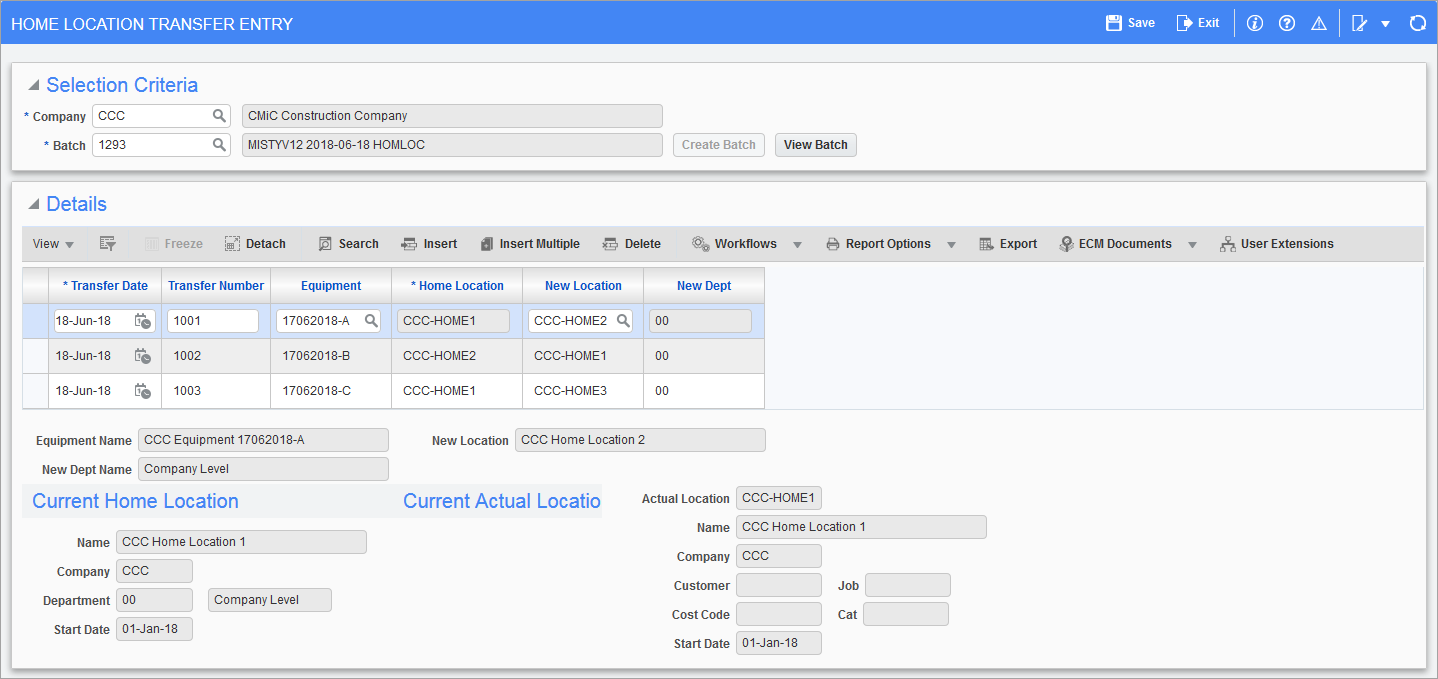
Pgm: EMHLTR – Home Location Transfer; standard Treeview path: Equipment Costing > Utilities > Home Location Transfer > Home Location Transfer
Home Location Transfer allows the user to change the home location of equipment for accounting purposes so that transactions are allocated against another General Ledger department. This screen is similar in nature to the ‘Actual Location Transfer’ screen (standard Treeview path: Equipment Costing > Transactions > Actual Location Transfer > Enter Transfer Transactions.)
Company
Enter/select company code. By default, the user's default company will be displayed. This company code is for the company that owns the equipment.
Batch
Enter/select a valid batch number or use the [Create Batch] button to create a new batch. This batch is for the transfer transactions.
Transfer Date
Enter the transfer date.
Transfer Number
Enter the equipment transfer document number.
This will be a required field if ‘Equipment Transfer Number Is Required’ is checked on the Equipment Costing Control File (standard Treeview path: Equipment Costing > Setup > Local Tables > Control – Control tab).
Equipment
Enter the equipment transfer document number.
Home Location Edit List
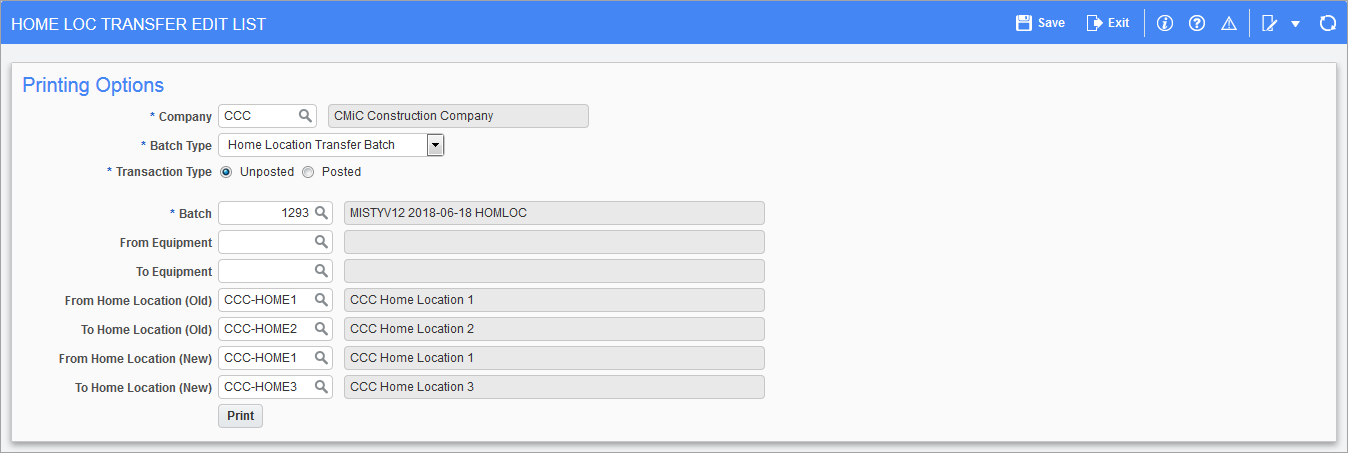
Pgm: EMHLTRNLST – Home Location Transfer Edit List; standard Treeview path: Equipment Costing > Utilities > Home Location Transfer > Edit List
Company
Enter/select company code. By default, the user's default company will be displayed. This company code is for the company that owns the equipment.
Batch Type
Batch type automatically defaults to “Home Location Transfer Batch”.
Transfer Type – Radio Buttons
Select the required transfer type. Choices are “Posted” or “Unposted”.
Batch
Enter/select batch number.
From Equipment / To Equipment
Enter/select a valid equipment code or leave blank to indicate “All”.
From Home Location (Old) / To Home Location (Old)
Enter/select a valid home location code or leave blank to indicate “All”.
NOTE: The Edit List parameter field ranges for Home Location (Old) and Home Location (New), allow the user to view more than one transfer in a batch by specifying the starting and ending range for the Home Location. For example, in the multiple transfer screenshot shown in the section entitled Home Location Transfer Entry of this guide, the range of locations in the Home Location column would represent the Home Location (Old) range (CCC-HOME1 – CCC-HOME2), and the range of locations in the New Location column would represent the Home Location (New) range (CCC-HOME1 – CCC-HOME3).
From Home Location (New) / To Home Location (New)
Enter/select a valid home location code or leave blank to indicate “All”.
[Print] – Button
Click on the [Print] button to preview the Home Location Transfer Edit List Report (EM1350).
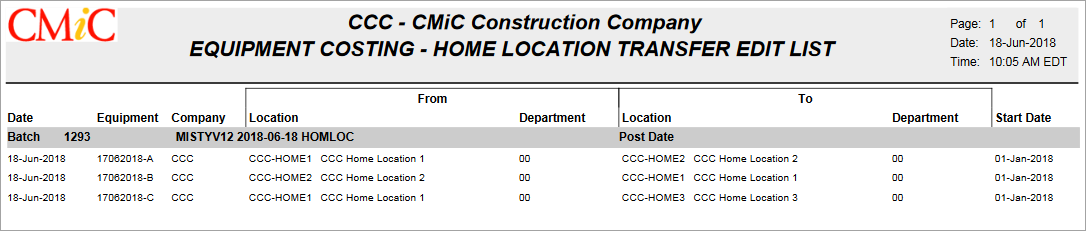
Example of Home Location Transfer Edit List Report (EM1350)
Home Location Transfer Post
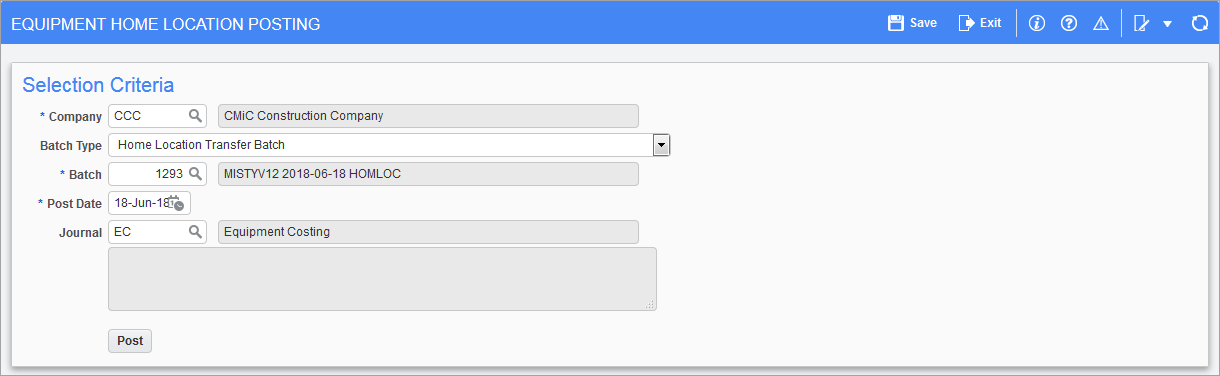
Pgm: EMHLPST – Equipment Home Location Posting; standard Treeview path: Equipment Costing > Utilities > Home Location Transfer > Home Location Transfer Post
Once the equipment transfer entries are made and saved, they can be posted using the Equipment Home Location Posting screen. The batch type will automatically default to “Home Location Transfer Batch”.
Company
Enter/select company code. By default, the user's default company will be displayed. This company code is for the company that owns the equipment.
Batch
Enter/select batch number.
Post Date
Enter post date. This field defaults to the current date but can be updated as required.
Journal
Enter/select a journal code. The system default’s the journal code indicated on the Equipment Costing Control File (standard Treeview path: Equipment Costing > Setup > Local Tables > Control – Control tab).
Click on the [Post] button to post the transfer transaction(s).