 Search Tips
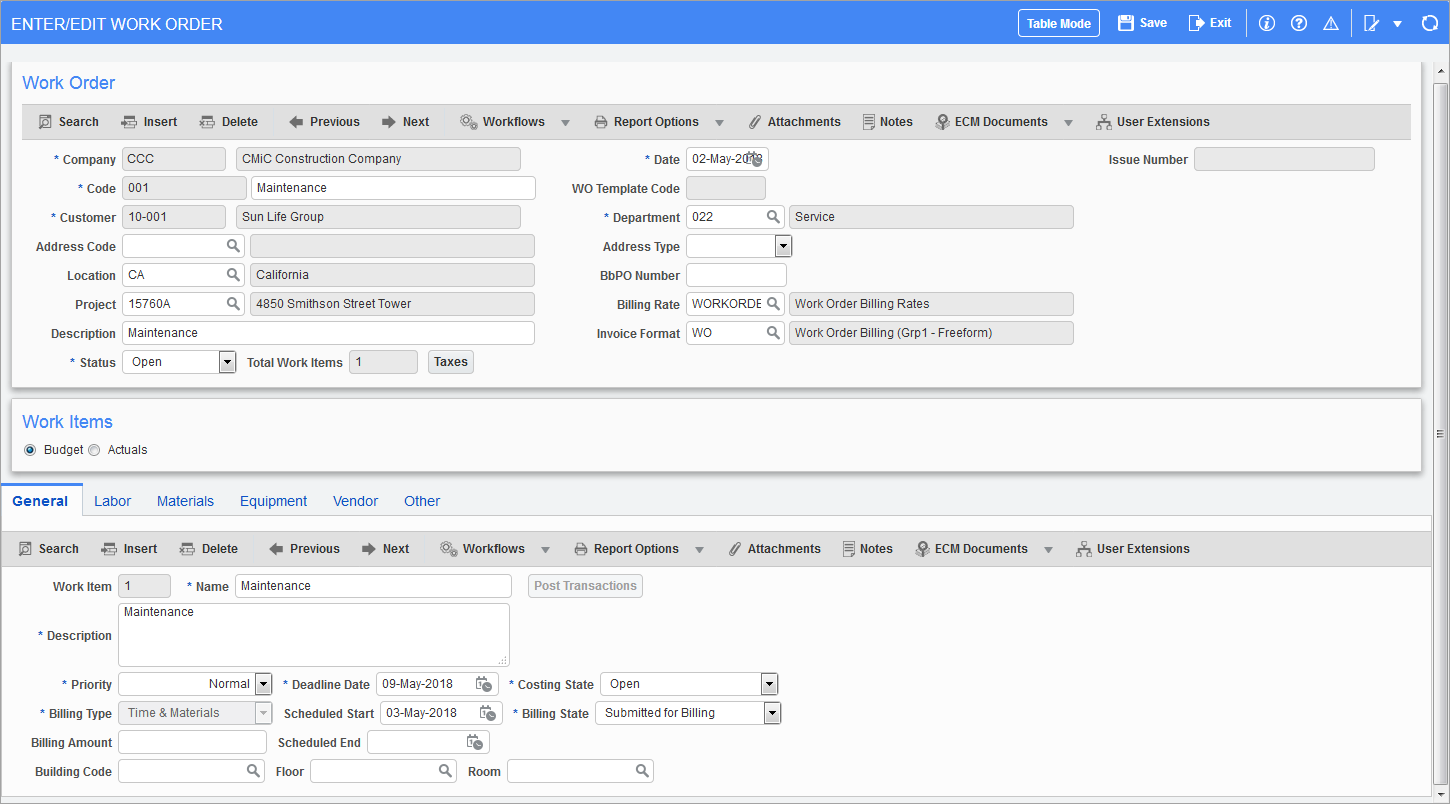
Pgm: DMWORKORDERS – Enter/Edit Work Order; standard Treeview path: DM > Work Orders > Enter / Edit Work Order
Company
The Company field will default to the user’s default work order company. This may be changed to any valid company the user has access to where a Work Order Billing Control file has been defined.
Code
This is the actual work order number. This field is only available if the Control screen is set to not use automatic work order numbering. If this field is open, enter the manual work order number. If automatic numbering is being used, this field will be populated once the work order information is saved. This field cannot be updated once a work order has been saved.
Customer
The customer code entered here will be the customer billed for this work order. This is a mandatory field. The customer must be a valid customer for the company.
Address Code, Address Type
The address code column works in accordance with the selection made in the address type code and displays the values differently as required.
Users must also note that, once a work order is committed and upon re-query the column is cleared and null. The address type simply controls the selection of the Address Code field and once committed, the type is cleared.
The Address Type drop-down list initially is defaulted as null when creating a work order. Users may select one of the following values. When the address type is,
-
Customer – The Address Code field’s LOV will contain only business partner alternate address codes.
-
Project – The selection of the project code, along with the Project field where a valid PM project code for the customer exists and is selected, will allow the selection of the location code from the global tables. Once the location code is selected, the system will automatically populate the address code associated with the location code. Users must note that the Address Code field is displayed only as the relationship with the location code is one to one and that users will not be able to select any other invalid combination.
-
All – It allows the users to select all address codes from the global tables.
-
NULL – When the address type and the address code is left as null, the system simply populates the customer address into the relevant table columns.
Project
The project code is not a required field and is only applicable if the Project Management module is being used. Only projects belonging to the current customer are considered valid projects. If a project code is entered, then the work order being created will be created as a sub job of the project job. This feature allows work orders to be grouped by year if a new project with a related project job is created at the beginning of each year for each customer.
Description
The work order name and description entered here become the defaults for each work item created against this work order, plus the description becomes the billing contract description. Both of these fields are mandatory.
Date
This Date field will default to the system date. This Date field is for reference only, but it is a mandatory field.
WO Template Code
When creating a new work order, users may select a template code from the field provided. The column values associated with a template will be applied to the work order and visible in some fields in the header section of the screen and at database level more columns updated in the job and billing contract tables. Once a new work order is committed, users have to re-query the same to make any updates. They will find the WO Template Code field cleared out, as the module does not store the template code once all the associated values are applied.
Users may select a different template along the course of a life cycle of a work order, provided the Billing State field of work items is set to "Not Yet Ready to be Billed". This may be required in some scenarios where the customer is not known when the work order is created and hence the need to change the customer code later on.
It must be understood that as long as there are no unposted or posted billings generated for a work order, users will be allowed to update the billing status back to "Not Yet Ready to be Billed". Once there exists a generated/posted invoice, then users will not be allowed to revert back the status. Similarly, the WO Template Code field will be locked once the status is not as described above.
Department
The department code entered here determines where both cost (C type transactions) and billing (B type transactions) will be posted in the General Ledger module. If a project code was entered, this field will default to the same department code as the project job. This is a mandatory field.
Location
This field is for reference only. Valid location codes must have been defined in the Global Tables > Location Codes screen.
BbPO Number
This is a free form field for reference purposes only. Users may enter any applicable PO number related to the work order. The maximum length allowed is 11 characters in this field.
Billing Rate
The billing rate entered here, will be used to determine the billing amount for transactions posted to a work order/item that is defined with billing type – "Time and Materials". This field will default to the billing rate entered on the Control screen, but can be changed. This is a mandatory field.
Invoice Format
The invoice format entered here determines the look of the invoice that will be given to the customer. This field defaults from the Control screen but can be changed. This is a mandatory field.
Issue Number
This is a display only field. More information will be provided in a future release.
Status
The status has two states, "Open" or "Closed". If a work order is closed it will not be able to be used in W lines for cost transactions, nor will it accept any more work items or changes to existing work items. Nor will it be considered available for billing within the Work Order Billing module. A work order can be closed or re-opened at any point in time.
Total Work Items
This is a display only field. It indicates the total number of work items belonging to the work order.
[Taxes] – Button
The [Taxes] button when pressed, opens a pop-up window with three enterable fields for tax codes. If any taxes are maintained in customer maintenance, then the tax codes will be defaulted into the work order. If not present at customer level, then users may enter/select the tax codes from the available list. Users are allowed to leave them as blank as well, if no taxes are applicable.
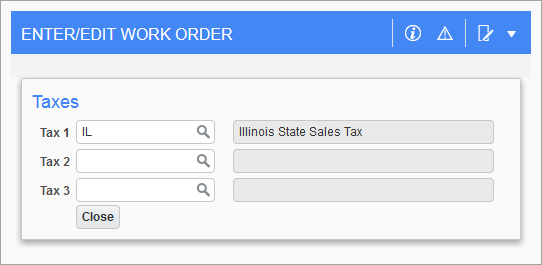
Taxes pop-up window