 Search Tips
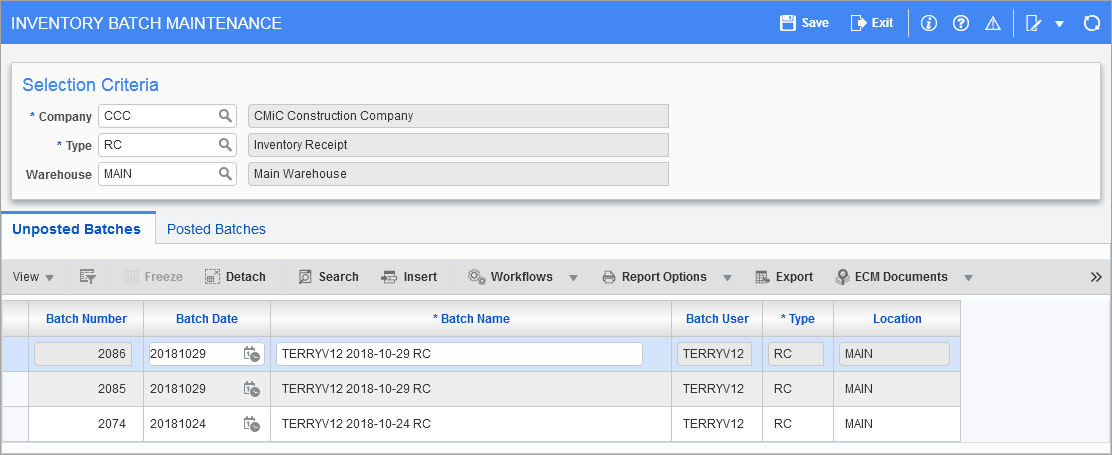
Pgm: CIBATCH – Inventory Batch Maintenance; standard Treeview Path: Inventory > Receipts > [View Batch] button
The create batch function is available in every transaction program via the [Create Batch] button that appears next to the batch number field.
If a batch is created from the menu option Prepare Batch, the user is required to manually enter the batch type. Although this is a simple procedure, to avoid errors it is much easier to create a batch directly from the required transaction entry screen. When created from the relevant transaction screen, the system will pre-fill the correct transaction type eliminating the chance of error.
Batches in the Inventory module can be limited to specific warehouses if required. If a batch is created with a warehouse attached, then the module will only allow transactions for the specific warehouse to be entered.
If the program is called from using the [Create Batch] button, the company, warehouse, and transaction type are automatically populated and the user is taken directly to the detail section of the screen.
This program is called by using the [View Batch] button that displays next to the Batch field. As the screen opens, it automatically displays all the unposted batches for the current user. When this screen is used with the [Create Batch] button, the batch type is automatically set to the correct type for the type of transaction being entered.
If the current user has the privilege to see other users’ batches, then all unposted batches for the company will display.
Warehouse
If a warehouse/location code is entered, the batch will restrict entry of transactions to this warehouse code. This is not a required field. If the program was called from a transaction entry screen, the warehouse code will be set to the warehouse code entered in the transaction screen. The warehouse/location code will default according to the user's default in both the Inventory Batch Maintenance screen and any transaction entry screen.
Type (Batch Type)
Enter the required batch type. Batch types are related to the types of transactions allowed within the batch. The module will not allow a sales transaction to be entered in a standard cost update batch. Batch types include:
-
Non-Requisition Issue
-
Composite Item Processing (Partial)
-
Composite Item Processing (Full)
-
Transfer Between Releasing Places
-
Physical Count
-
Release or Issue Allocated Items
-
Inventory Receipt
-
Requisition Issues/Returns
-
Return
-
Inventory Sale
-
Standard Cost Updates
-
Transfer
-
Write Off
Batch Date, Batch Name
The Batch Date field will automatically default to the system date. This field may be modified if required. This field is for reference only and it is not the posting date of the batch. The batch name entered may depend on corporate policy. The batch name should be informative and meaningful to not just the creator but other system users as well. This is usually a descriptive name that includes a date and the type of transactions to be entered into the batch.
Batch User, Batch Number
The Batch User and Batch Number fields are automatically populated by the module.