 Search Tips
Inventory - Direct Inventory Receipts
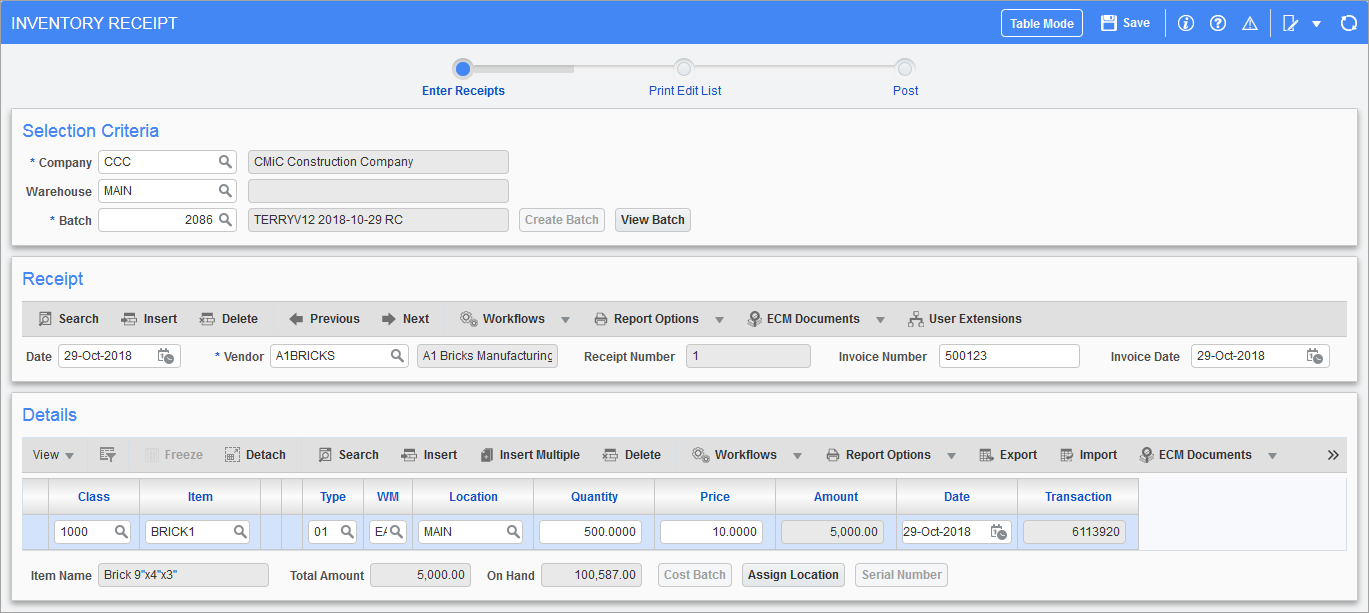
Pgm: CIRCT – Inventory Receipt; standard Treeview path: Inventory > Receipts
In most cases, inventory receipts will be done via the Purchase Order receiving function. The only reason that this program should be used is if the Purchase Order module is not being utilized.
The direct receipt of an inventory item through this screen will result in the following transaction:
- DR Inventory Purchase Account
- CR Inventory Suspense Account
When posted, the inventory book quantity for the received items will be increased/decreased within the Inventory module.
If the user is receiving inventory items using this screen, the user must manually enter an invoice into the Accounts Payable module to complete this transaction and clear the credit to the suspense account. Remember, when entering an Accounts Payable invoice to reflect this receipt, credit the Accounts Payable account and debit the inventory suspense account.
Accounts Payable vouchers must be entered manually, on a separate transaction, to offset the inventory suspense account.
Enter the company, restricting warehouse, and batch number. The [Create Batch] button should be used to create a new batch.
Receipt
Date (Receipt Date)
The receipt date will default from the current system date. Modify this date to reflect the date of receipt for the items received by the vendor listed within this section.
Vendor (Code)
Enter the vendor code of the supplier for the inventory items. The vendor’s invoice will be entered separately in the Accounts Payable module.
Invoice Number
Enter the invoice number used. The invoice number is a reference field only and will have no direct attachment to the Accounts Payable module.
Invoice Date
The invoice date will default from the current system date. Verify/modify the invoice date to reflect the date of the invoice issued for the items on this receipt.
Details
Item Class, Item Code, Item Type, WM
Enter the item class, item code, item type, and WM for the inventory item being received.
Location
Enter the location code (bin or warehouse) the item will be received into.
If the batch has a location associated to it, the module will restrict the location code entered here to be either the batch location or a sub-location of it.
Quantity
Enter the quantity of the item.
Price
Enter the price of the item. If there is tax on the item, the tax amount must be included in the price amount.
Amount
The amount will be calculated based on the quantity and price entered.
Date
The module will default the order date into the detail line. Modify the date for the item on this detail line.
Transaction
This field is display-only and will auto-generate a transaction number when a new line is inserted.