 Search Tips
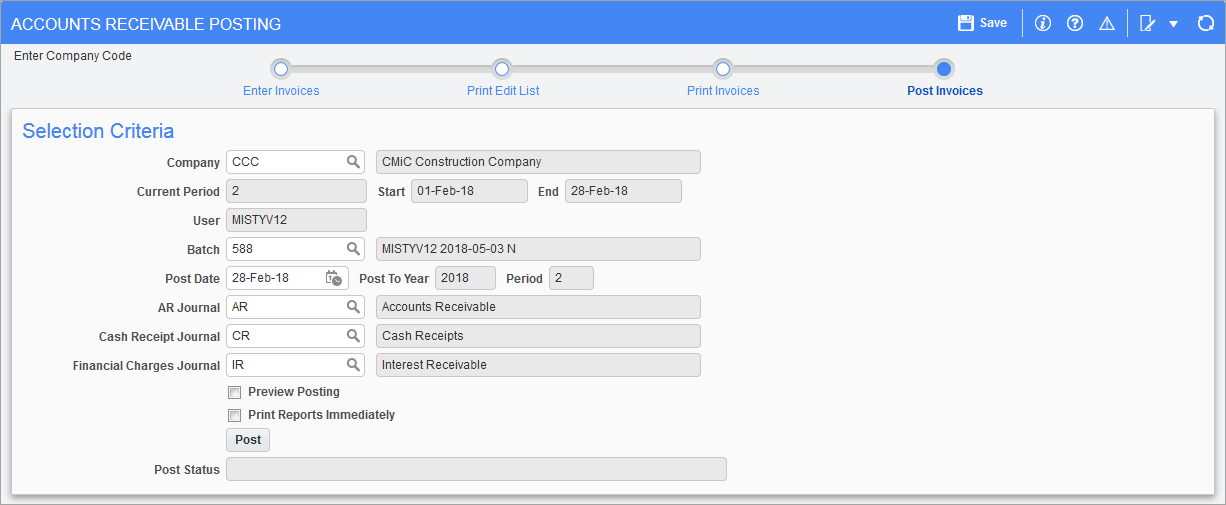
Pgm: ARPSTFM – Accounts Receivable Posting; standard Treeview path; standard Treeview path: Accounts Receivable > Invoice > Post Batches
The Account Receivable Posting screen can be accessed indirectly from the AR Invoice Entry, AR Enter Memo, and Enter Receipt screens. It also can be reached directly from the Treeview, as noted by the caption above.
When a batch is created and all required data is entered, the system does not update immediately so that there is the opportunity to review and verify the entries. Once a batch has been verified, it is then ready to post. Posting does many functions, it updates the information on the AR sub-ledger, it creates General Ledger transactions, and it updates the Job Cost and Equipment sub-ledgers if required.
This screen automatically defaults to the user’s default company. Verify that the company code matches the company code of the batch being posted.
Batch
Enter/select the batch number.
Post Date
Enter/select the posting date for all the transactions in the batch being posted. The date entered in this field will be the date of record for all transactions in the batch. The General Ledger dispositions and any distributions to sub-ledgers will also be processed with this date.
This field can be pre-populated, depending on the settings in the Account Receivable Control File: if the box ‘Default Post into Invoice Posting and Receipt Programs’ is checked, then this field will default to the current date if the current date is within the open Accounts Receivable period. If the current date is not in the current AR period, then this date will default to the last day of the AR period.
If this box is unchecked, the Post Date field will have no default value.
AR Journal
The system will default the journal code from the Accounts Receivable control file. The user also can choose another Journal Code from LOV. The journal code is used to group like transactions together so that they can be viewed in the GL under one query. The journal code usually represents the sub-ledger.
Preview Posting – Checkbox
Check this box to make the posting reports available for preview prior to the actual posting.
Checking this box disables the ‘Print Reports Immediately’ checkbox.
Print Reports Immediately – Checkbox
Check this box to print the posting report immediately after posting. If left unchecked, the posting report will not print during the posting process but can be printed later using the posting utility.
Post Status
This is a display only field. It will show the status of the posting process after pressing the [Post] button.