 Search Tips
Getting Started with the Web Deployment of Construct CT
We have deployed our Construct CT app to the web! This is an opportunity for users to use the features they love from our iOS and Android apps in their web browser.
Supported Web Browsers
Supported browsers are: Chrome, Firefox, Edge, and Safari (latest versions) 64-bit only.
Here are the specific versions:
| Web | Chrome 84 & above | All |
| Web | Firefox 72.0 & above | All |
| Web | Safari on El Capitan & above | All |
| Web | Edge 1.2.0 & above | All |
System Requirements
Enterprise Customers
Nexus 01 (or higher)
NOTE: With R12 Patch 22-2, certain functionalities may not operate as intended. To access and use the complete feature set, you must either upgrade to Nexus 01 or submit a request for a hotfix merge for your custom build.
There are no additional requirements for Cloud customers – we’ve taken care of the back-end updates for you. Construct CT is compatible with Cloud Patch 22.
Customizing Your Console
To launch the Construct CT web deployment on your desktop, you will need to add it as a new tab on your console. The process for adding it to your console is provided below.
![Screenshot of Enterprise with [Edit Mode] button highlighted.](../../../../Resources/Images/Crewtime_R12/CT_Web_Deployment1.png)
To get started,

Once the screen is in Edit mode, click the [+] button.
![Screenshot of Add Tab launched from [+] button.](../../../../Resources/Images/Crewtime_R12/CT_Web_Deployment3.png)
In the Add Tab pop-up window, enter a name for the new tab (E.g., Crew Time). When finished, click [OK].
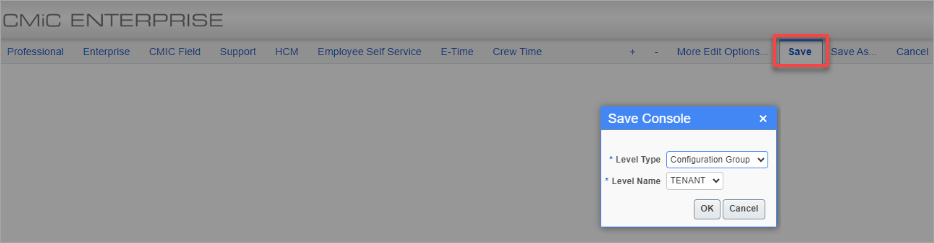
Next, click on the [Save] button. In the Save Console pop-up window, specify the security level. When finished, click [OK]. The tab will be added to your console.

Select the tab you just created (e.g., Crew Time). Click on the [Region Content] button and select "Edit Content" in the drop-down menu.
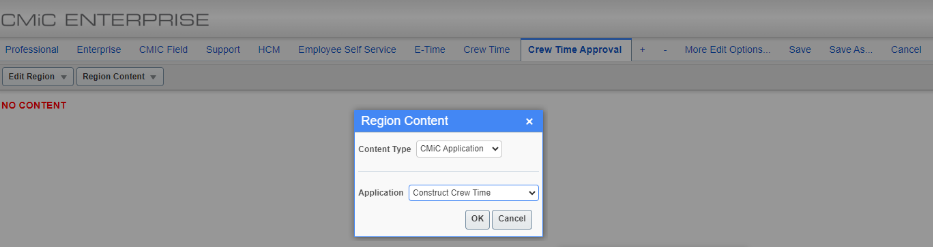
In the Region Content pop-up window, select "CMiC Application" in the Content Type field, and select "Construct Crew Time" in the Application field. When finished, click [OK].
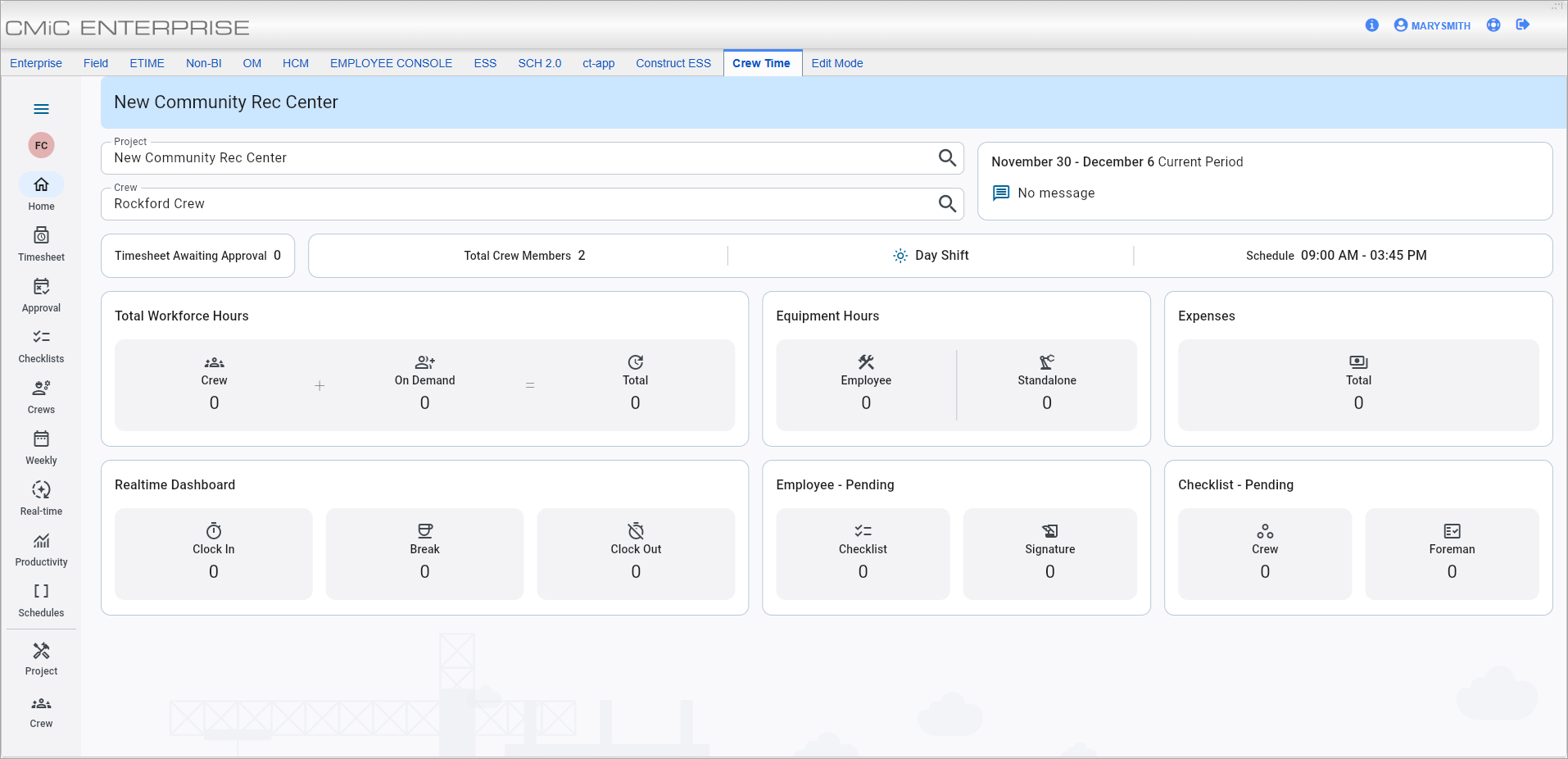
Now you can launch the Construct CT web deployment on your desktop.