 Search Tips
Overview
Construct CT offers full offline capability to allow users to create, update, and manage crews, members, activities, equipment, and timesheets even when offline.
When back online, local data automatically synchronizes with the server following conflict resolution rules.
Offline synchronization ensures continuous productivity while conflict handling prevents data duplication and maintains data consistency.
For more information about what features are supported offline, please refer to Construct CT - Offline Data Management.
Local Databases
While connected to the internet, the app downloads all information from the chosen server to the user's local device. The user's local database should be up to date so long as the app has not been deleted and reinstalled.
If the user is installing the app for the first time, the local database is empty and the user must log in with an internet connection and select the default project and crew. This will then download all crew members and jobs to which the user has been given access in E-Time security.
Users can download timesheets from the local server by accessing each day of the week on the timesheet. In the screenshot below, the user has pressed on each tab for the days of the selected week to ensure that local and server data are synchronized.
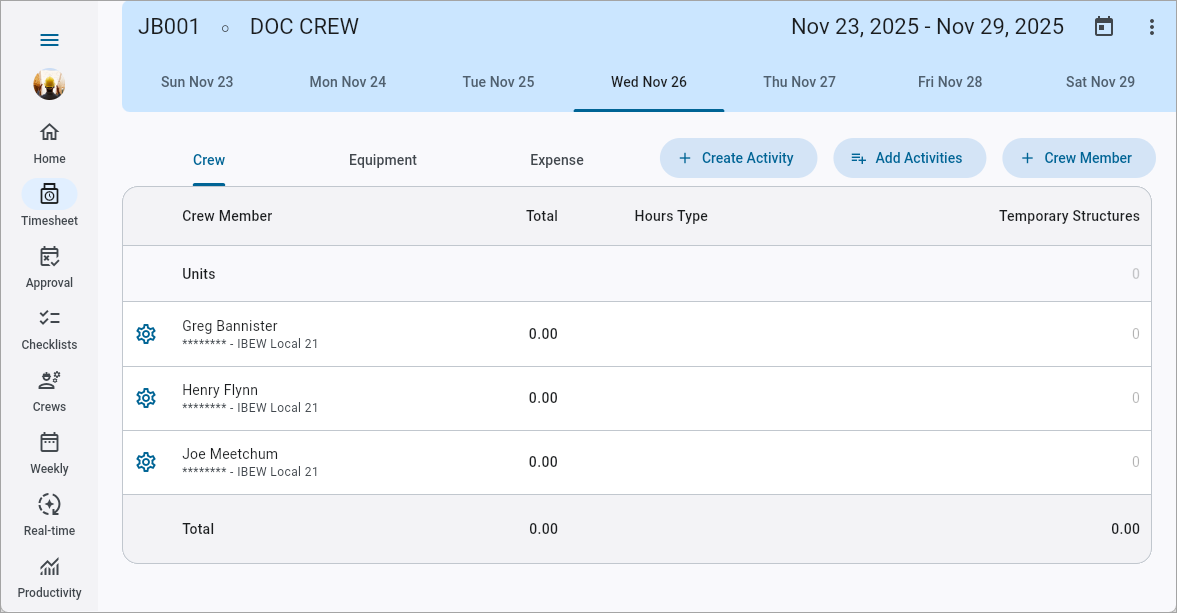
Available crew members, tasks, and equipment can also be downloaded on a fresh install by pressing the [Add Crew Member], [Add Activities], and [Add Equipment] buttons found in the Crew Maintenance screen.
Once this information has been downloaded locally, the Construct CT app supports both timesheet entry and access to the Crew Dashboard. Any time entered offline is saved locally on the user's device and will synchronize with the server when an internet connection is re-established.
Synchronization Workflow
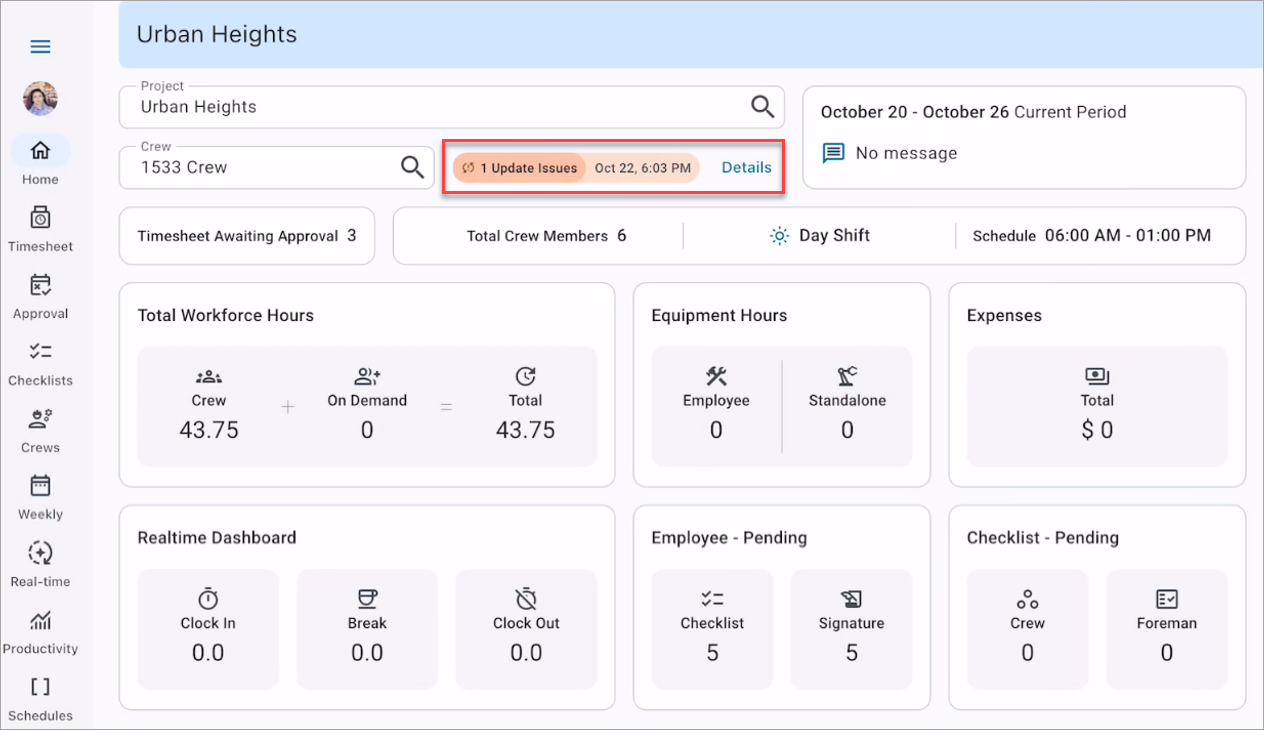
Construct CT - Home
The Home screen displays the device synchronization status. If issues occur, a Details link will appear beside the status.
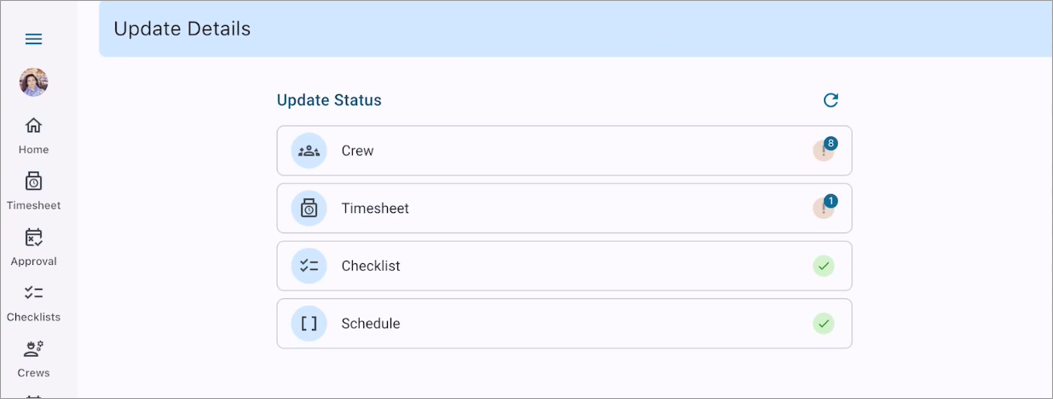
Update Details launched from Details link
Click on the Details link to view the Synchronization Log and update status. The log displays Crew, Timesheet, Checklists, and Schedule Details with upload/download statuses.
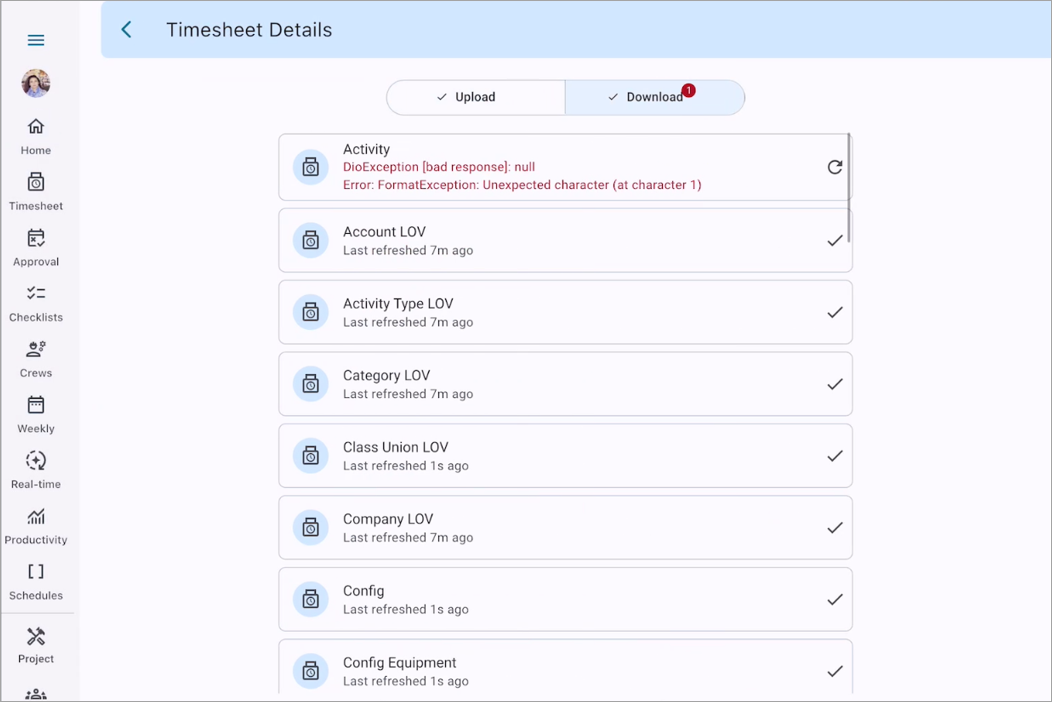
Timesheet Details
A red badge indicates sync issues and banners notify users of failed syncs.
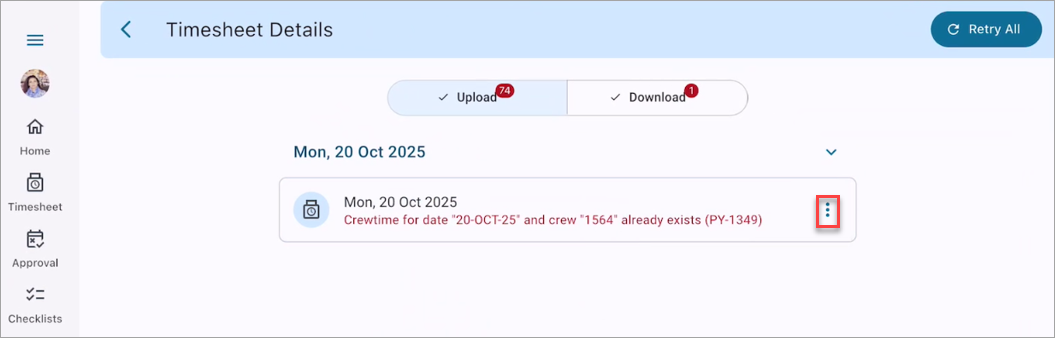
Timesheet Details
Select the Options menu to view resolution options.
General Conflict Handling Rules
The following options are available:
-
Retry: Press the [Retry] button to reattempt the upload.
-
Discard : Select the "Discard" option to remove the local record.
-
Rename: Assign a new unique code for unique-key conflicts.
-
Merge: Select the "Merge" option to combine local and server data to preserve both.
Conflict Handling by Screen and Entity
| Screen | Supported Offline? | Details |
|---|---|---|
| Crew Maintenance | Partially |
|
| Members Tab | Yes (partial LOV support) |
|
| Activities Tab | Yes (partial LOV support) |
|
| Equipment Tab | Yes (partial LOV support) |
|
| Approver Tab | Limited (auto-syncs when crew header syncs). |
Supported and Unsupported Features in Offline Mode
-
Crew Maintenance: Partial (Create, Update, Delete before usage)
-
Timesheet Entry: Partial (Trade-union validation online)
-
Schedules Maintenance: Fully Supported
-
Checklists: Supported
-
Employee Sign-Off: Not Yet Supported
-
Dashboards (Weekly, Real-Time, Productivity): Not Supported.
-
LOVs (Lookups):Based on favorites.
Only records marked as favorites online are visible offline. If they are not marked, the LOV appears blank.
Business Restrictions Summary
-
Unique Crew Code: Must be unique across all projects.
-
Timesheet Dependency: Crew cannot be deleted once timesheets exist.
-
Employee Uniqueness: Each employee appears once per crew.
-
Equipment Uniqueness: Each equipment appears once per crew.
-
Offline LOVs: Only favorite values available; otherwise, LOV is blank offline.
-
WBS Fields: Not supported offline.
Best Practices
-
Sync at least once every 24 hours to avoid large conflict batches.
-
Resolve conflicts promptly to prevent data loss.
-
Use "Merge" to preserve continuity.
-
Avoid reusing crew codes for different projects.
Troubleshooting
If sync errors persist, check the Synchronization Log for parent issues.
-
Retry after resolving parent-level conflicts.
-
Export logs and contact CMiC Support if issues continue.