 Search Tips
Overview
The 'Hide Trade Description' checkbox configuration provides flexibility for organizations that wish to limit or simplify the display of trade information in Construct CT. Administrators can easily control visibility without affecting other modules or workflows. This feature allows users to:
-
Keep screens uncluttered by not showing trade description.
-
Limit the visibility of trade details across the board.
-
Maintain consistent privacy settings across all Construct CT functions.
When enabled, trade descriptions are replaced with asterisks (******) across all Construct CT–related screens. This option helps simplify views or restricts visibility of detailed trade information for privacy or compliance reasons.
NOTE: The 'Hide Trade Description' checkbox is available in Nexus 01.
Configuration Setup
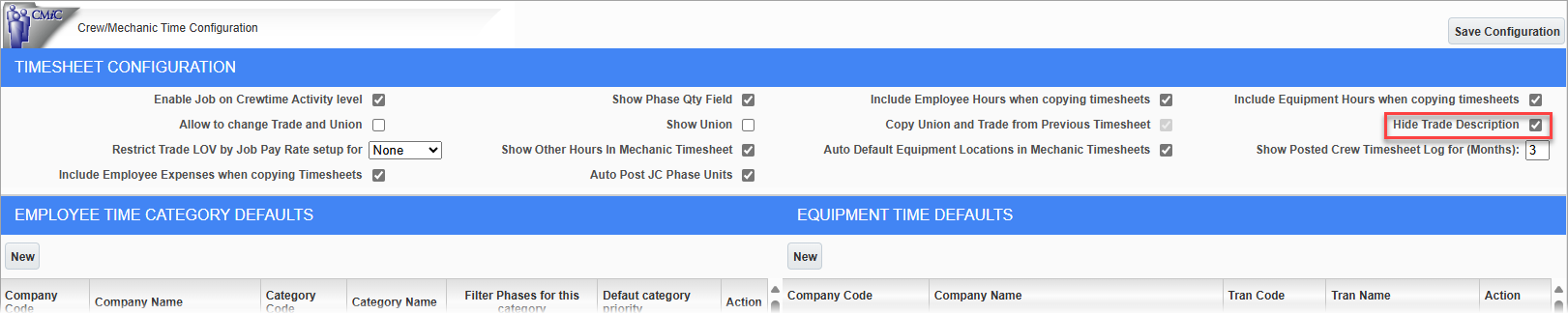
Crew/Mechanic Time Configuration; standard Treeview path: E-Time > E-Timesheet > Setup > Crew Timesheet Configuration
The 'Hide Trade Description' checkbox is available on the Crew/Mechanic Time Configuration screen in the E-Time module. This is a is a global setting and will impact all users.
NOTE: The 'Hide Trade Description' checkbox is only enabled when the 'Allow to Change Trade and Union' is unchecked. This ensures that when users are allowed to change trade or union, the description remains visible for clarity.
NOTE: This checkbox affects Construct CT and its related screens. The E-Time module's Time Entry screens remain unaffected.
Affected Screens
When the 'Hide Trade Description' box is checked, the system masks trade descriptions with “******” in the following areas:
-
Crew Time Entry
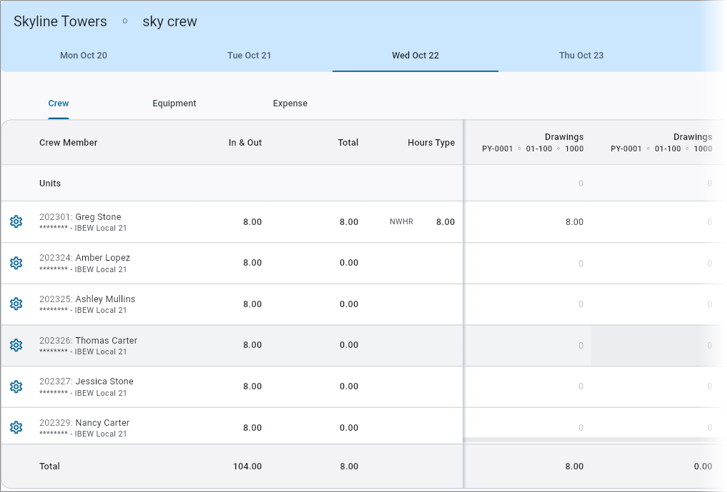
Construct CT - Crew Time Entry
-
Crew Maintenance
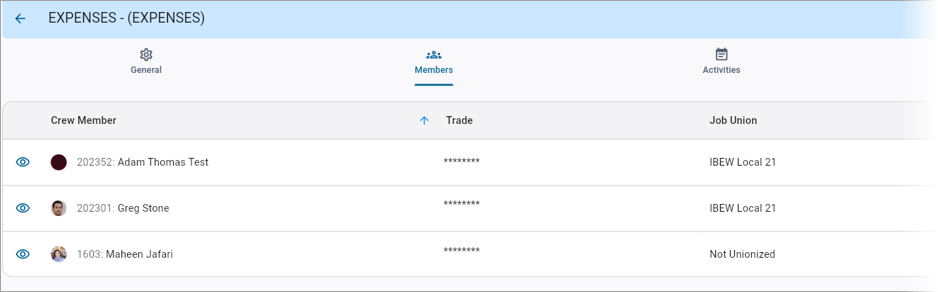
Construct CT - Crew Maintenance
-
Employee Dashboard
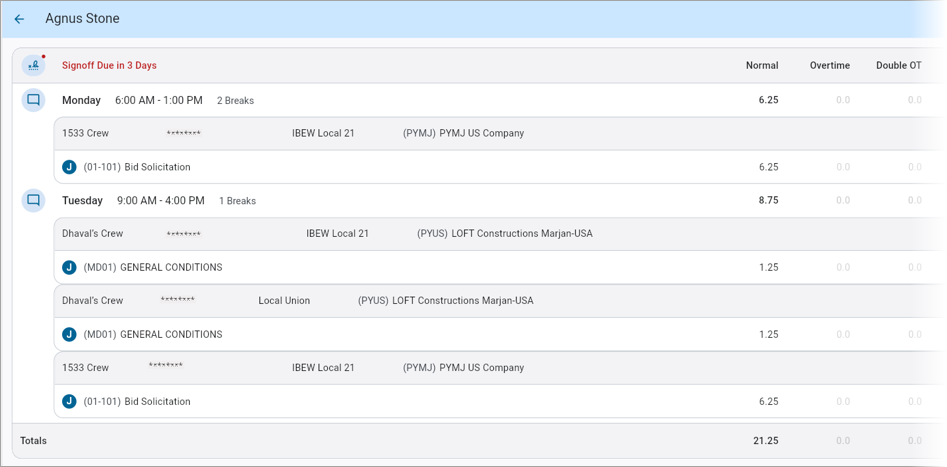
Construct CT - Employee Dashboard
The trade description is masked and codes are shown (if applicable).